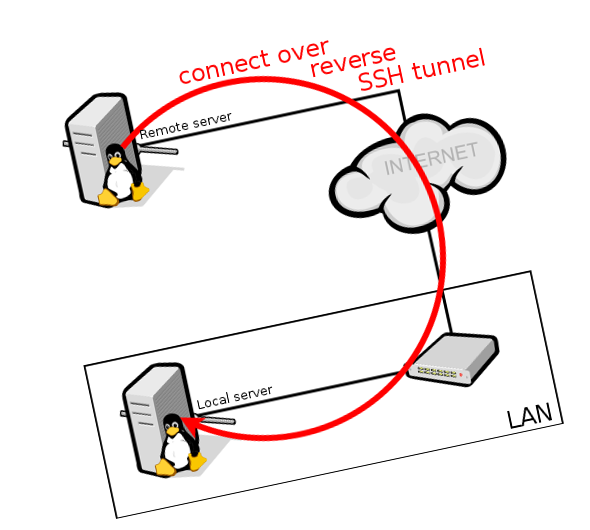
When opening the SSH port to the Internet (on at least IPv4), it will continually get bashed by attackers, trying to get in by guessing usernames and passwords. There are a couple of things you can do to make it a little or a lot harder to counter these attack.
One of the easiest is installing a tool like sshguard. This tool checks the failed logins on the SSH server and whenever it sees a suspicious failed login it will block the source IP. Of course the tool can be tailored to accept a couple of attempts, how long it should block the source IP, create whitelists, etc. The downside is that the probing still occurs and you already give some information away, as the attacker sees the SSH server and in many cases even the version.
Another option would be to configure the SSH server on a different port number. This will greatly reduce the number of attempts, but of course it will also make it a bit more complicated for yourself, as you also need to remember the different port. And it is still recommended to use other counter measurements.
Furthermore, for an Internet facing SSH server, it is always a good practice to disable password logins for not only root but all users and only allow logins with public/private keys.
With all the above measurements you can greatly reduce the risk, but still some risk remains, especially when an attacker can find out the version of the SSH server and finds a vulnerability. So in the end the best option is to not expose the SSH server to the Internet. For that you can of course use a VPN, but there are also other solutions.
One solution for that is to use a reverse SSH tunnel. Instead of creating a SSH session from a client to a (SSH) server, a SSH session is created from the server to a trusted server. Within that session a SSH tunnel is created and now it is possible to login from the trusted server to the server in the created SSH tunnel.
To further automate the creation and maintainability of the SSH tunnel we will be using AutoSSH. This tool will monitor and recreate the tunnel after a network failure or network change, thus making the SSH tunnel more robust.
First install the AutoSSH tool:
sudo apt update
sudo apt install autossh
Create a ~/.ssh/config file defining the SSH session and tunnel parameters:
Host <hostname>
        # Hostname of the trusted server
        Hostname <hostname>
        # Adjust if the trusted server is reachable on another port
        Port 22
        # Tunnel user on the trusted server
        User reversessh
        # Public key added to the authorized_keys of the tunnel user on the
        # trusted server
        IdentityFile /root/.ssh/id_ed25519
        ServerAliveInterval 30
        ServerAliveCountMax 3
        PubkeyAuthentication yes
        PasswordAuthentication no
        ExitOnForwardFailure yes
        SessionType none
        RequestTTY no
        Compression yes
        ControlMaster no
        RemoteForward /home/reversessh/<socketname> localhost:22
Create the systemd service file /etc/systemd/system/autossh.service with the following content:
[Unit]
Description=autossh
Wants=network-online.target
After=network-online.target

[Service]
Type=simple
User=root
ExecStart=
ExecStart=/usr/bin/autossh -M 0 <hostname>
Restart=always
RestartSec=60

[Install]
WantedBy=multi-user.target
Reload the systemd daemon, enable the autossh service and start it:
sudo systemctl daemon-reload
sudo systemctl enable autossh
sudo systemctl start autossh
On the trusted server the tunnel user needs to be created and as we are using a socket instead of a port we need to adjust the SSHD config a little. After the first connect the socket file will be created, but after a disconnect this socket file will remain linked, which prevents a new session to link the socket file again. With the option below the SSH server will first unlink the socket file before the new session will create and link it again.
adduser --disabled-password --shell /bin/false \
  --gecos "user for reverse ssh tunnel" reversessh

sudo sh -c 'echo "StreamLocalBindUnlink yes" >> /etc/ssh/sshd_config'
sudo systemctl restart ssh
As we are using sockets instead of ports we need to connect on a different way to the SSH server, to automate it a bit you can create the following script /usr/local/bin/rssh.sh and make it executable:
#!/bin/bash

FULLSOCKETPATH=$1
USERNAME=$2
SOCKET=$(echo ${FULLSOCKETPATH} | cut -d "/" -f 4)

ssh -i <identity added to the remote server authorized_keys> -o \ "ProxyCommand socat - UNIX-CLIENT:${FULLSOCKETPATH}" ${USERNAME}@${SOCKET}
Now it is possible to connect to the remote SSH server from the trusted server with the command:
rssh.sh /home/reversessh/<socketname> <username on remote server>